
Go to AP3D.HOSTEDRMM.COM / login with your username and password.
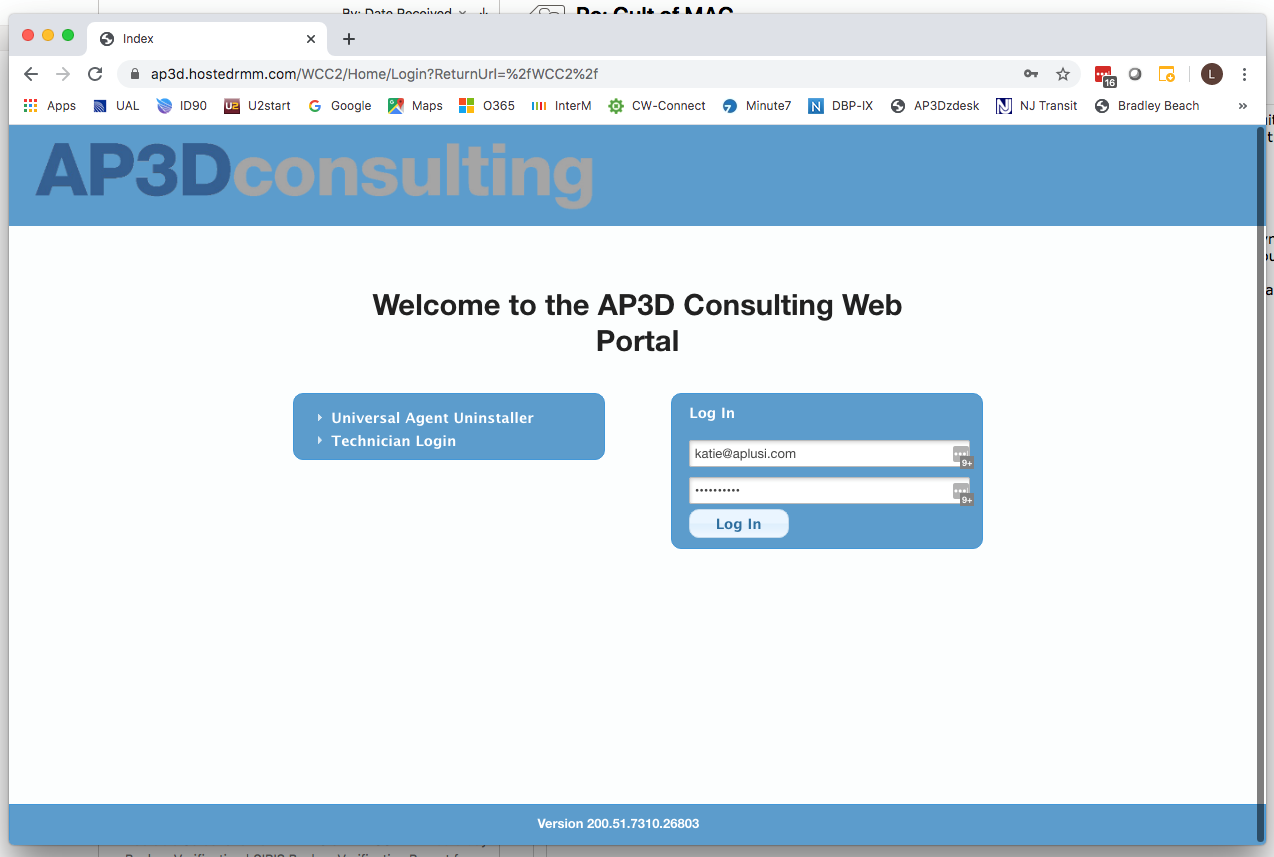
Click on the Computer tab from the left-hand column:
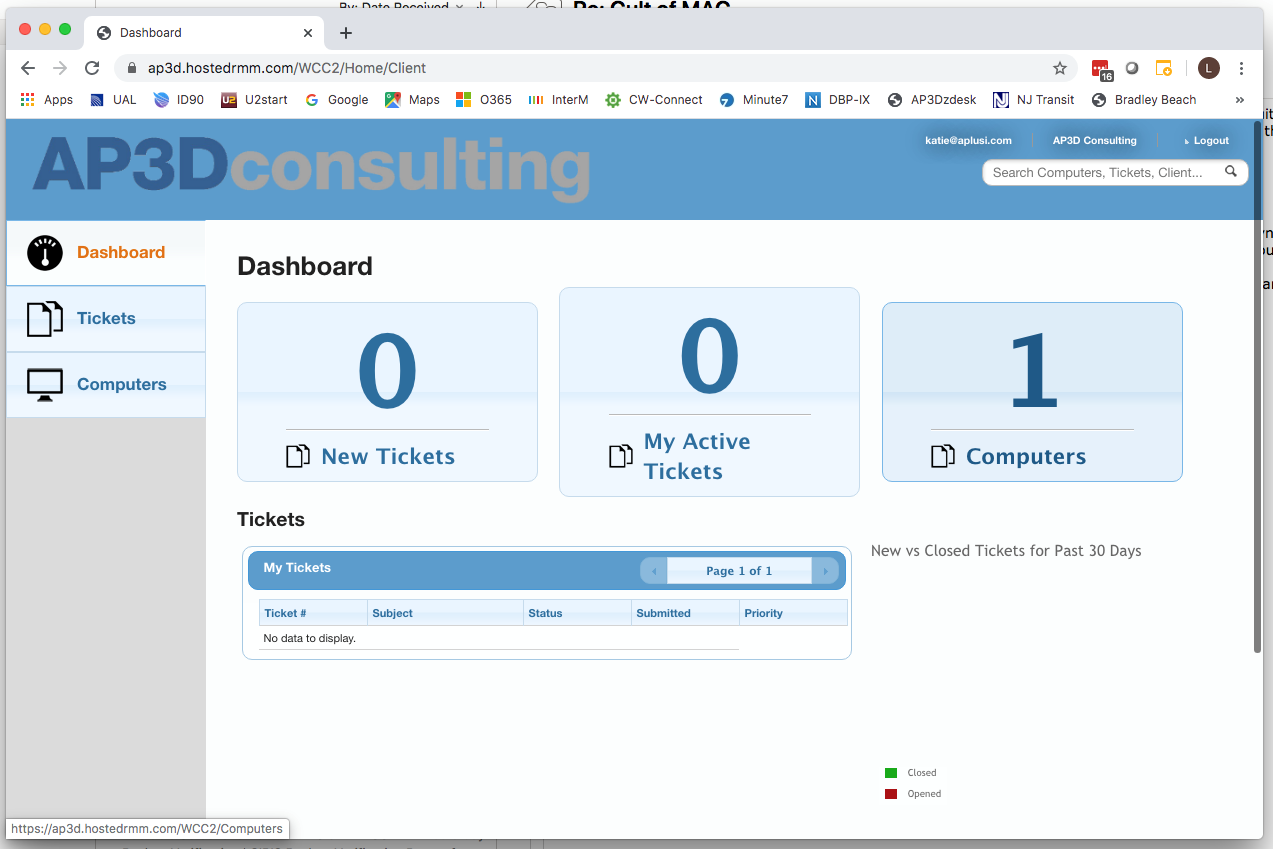
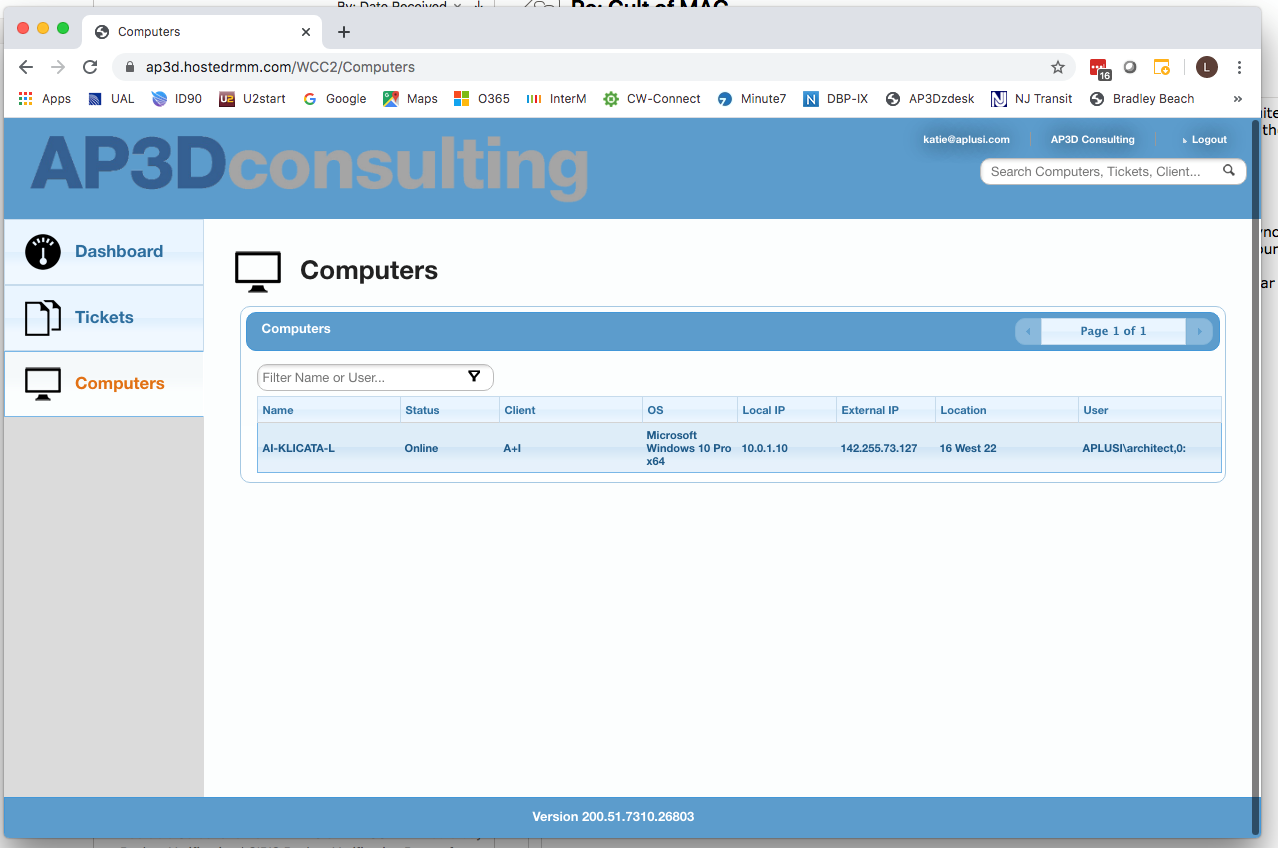
Click on the Computer listed under NAME, note some users might have multiple listed, please click on the appropriate device, if you do not know which to access email support.
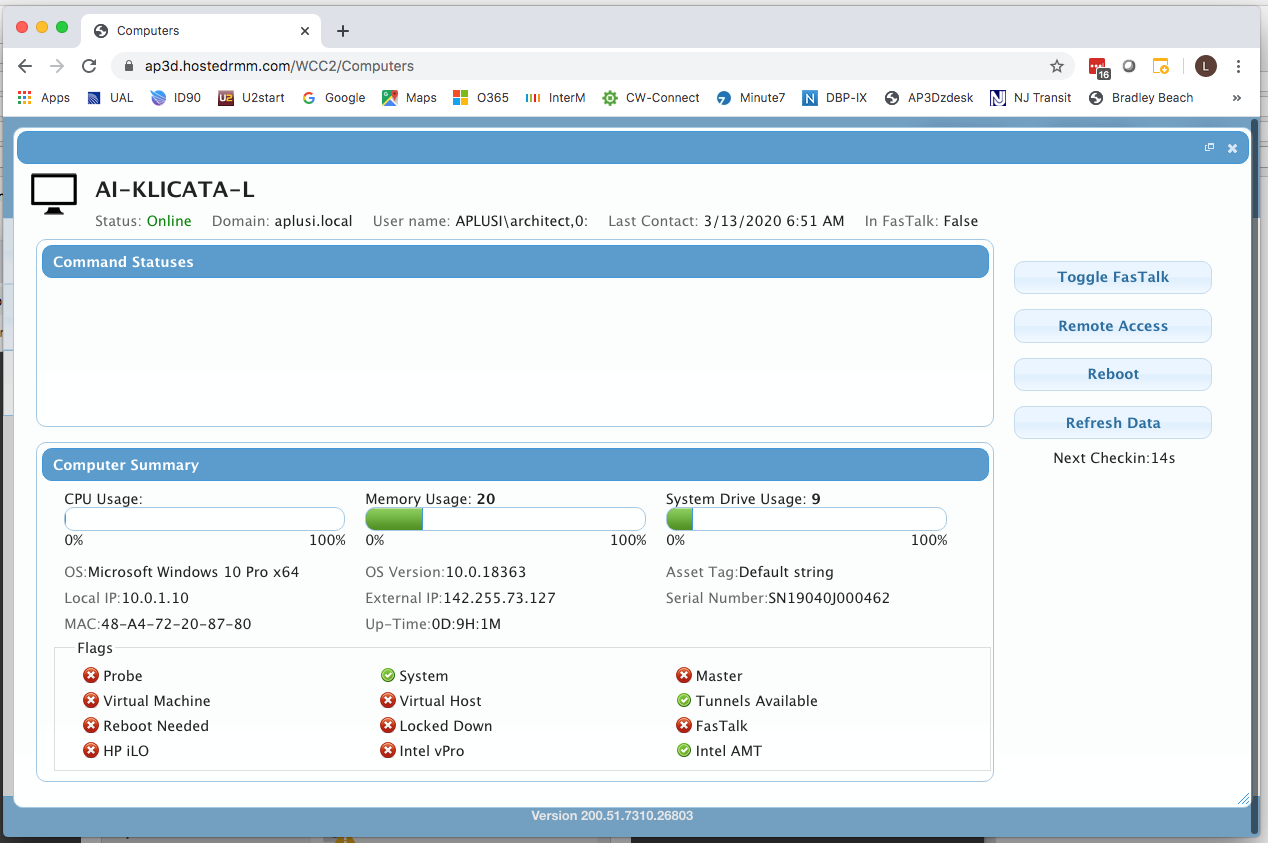
Click the Remote Access button on the left-hand side:
Your session will be started. On first connection, you will need to download the Screen Connect App:
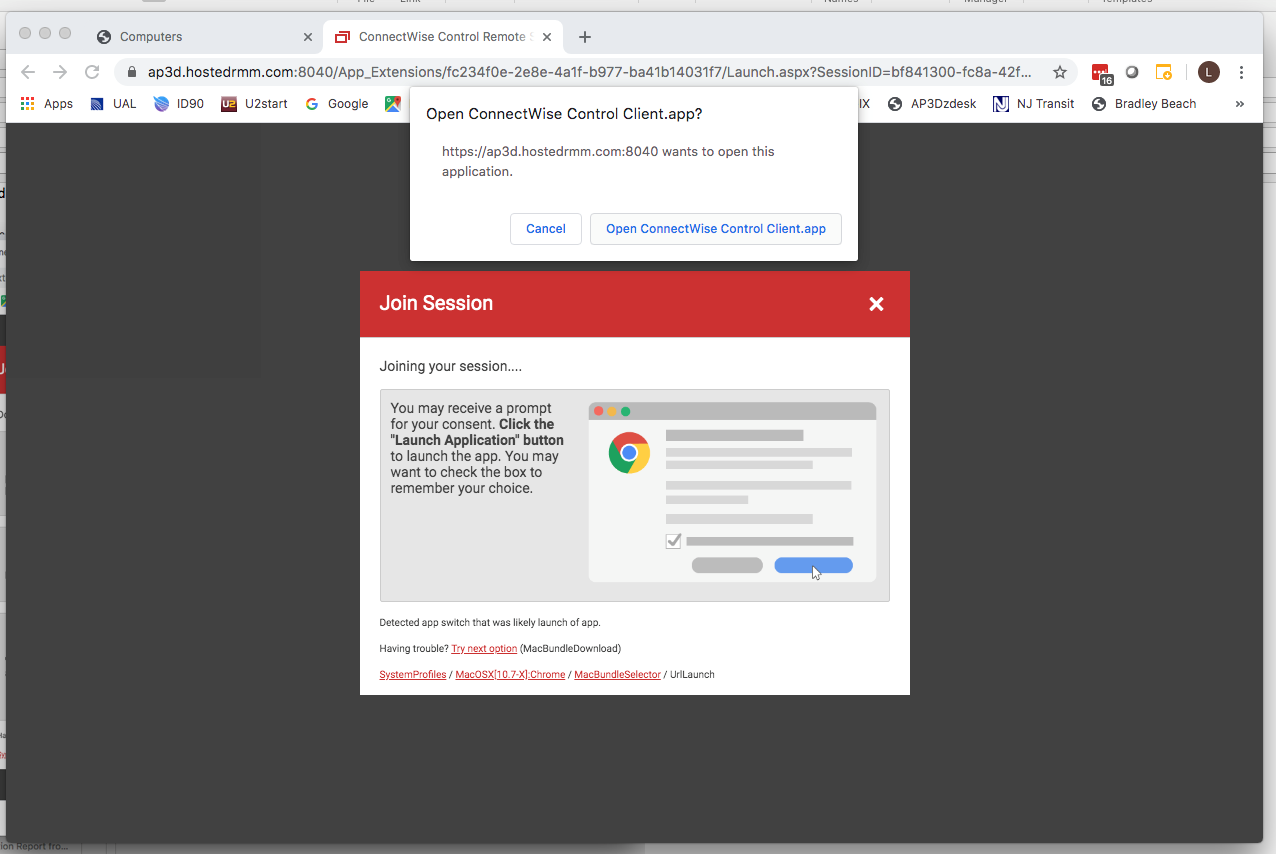
To download the “BUNDLE click on TRY NEXT OPTION:
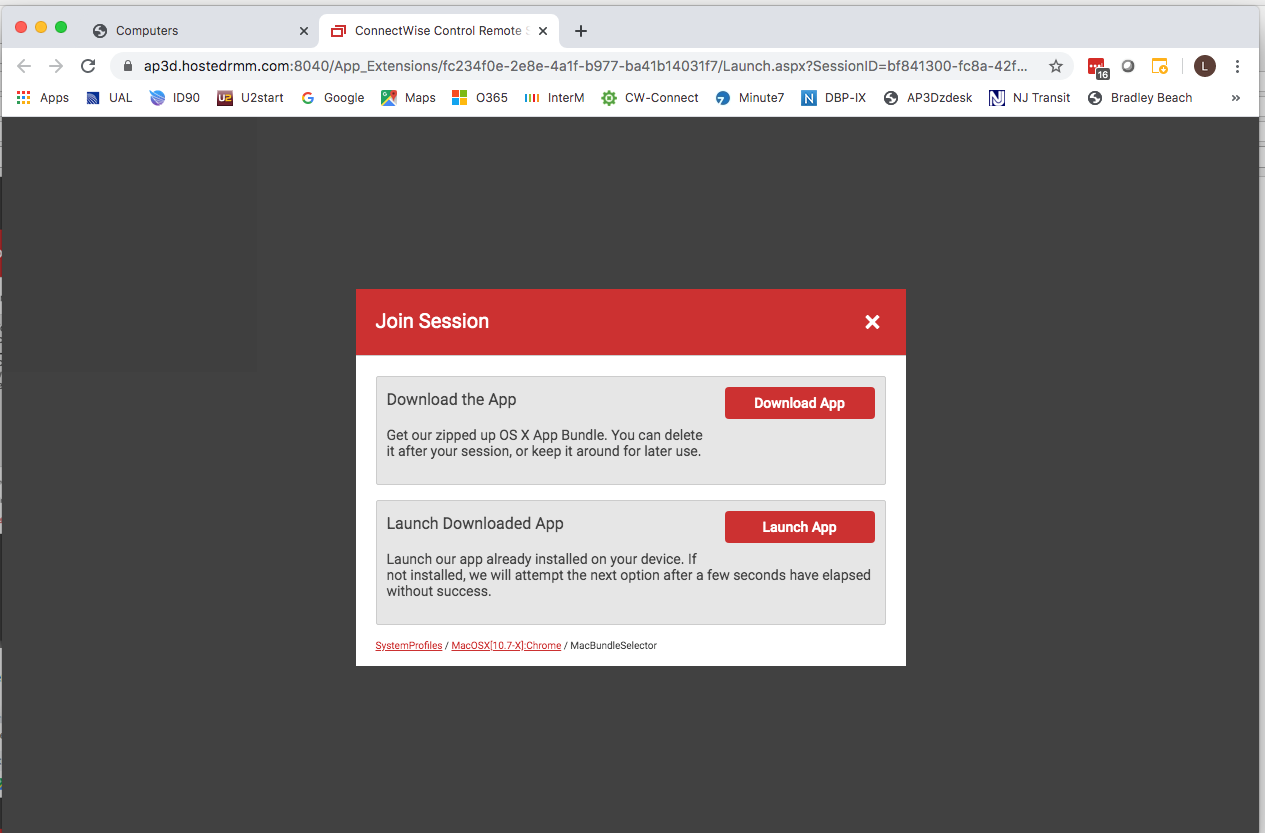
Select the DOWNLOAD APP:
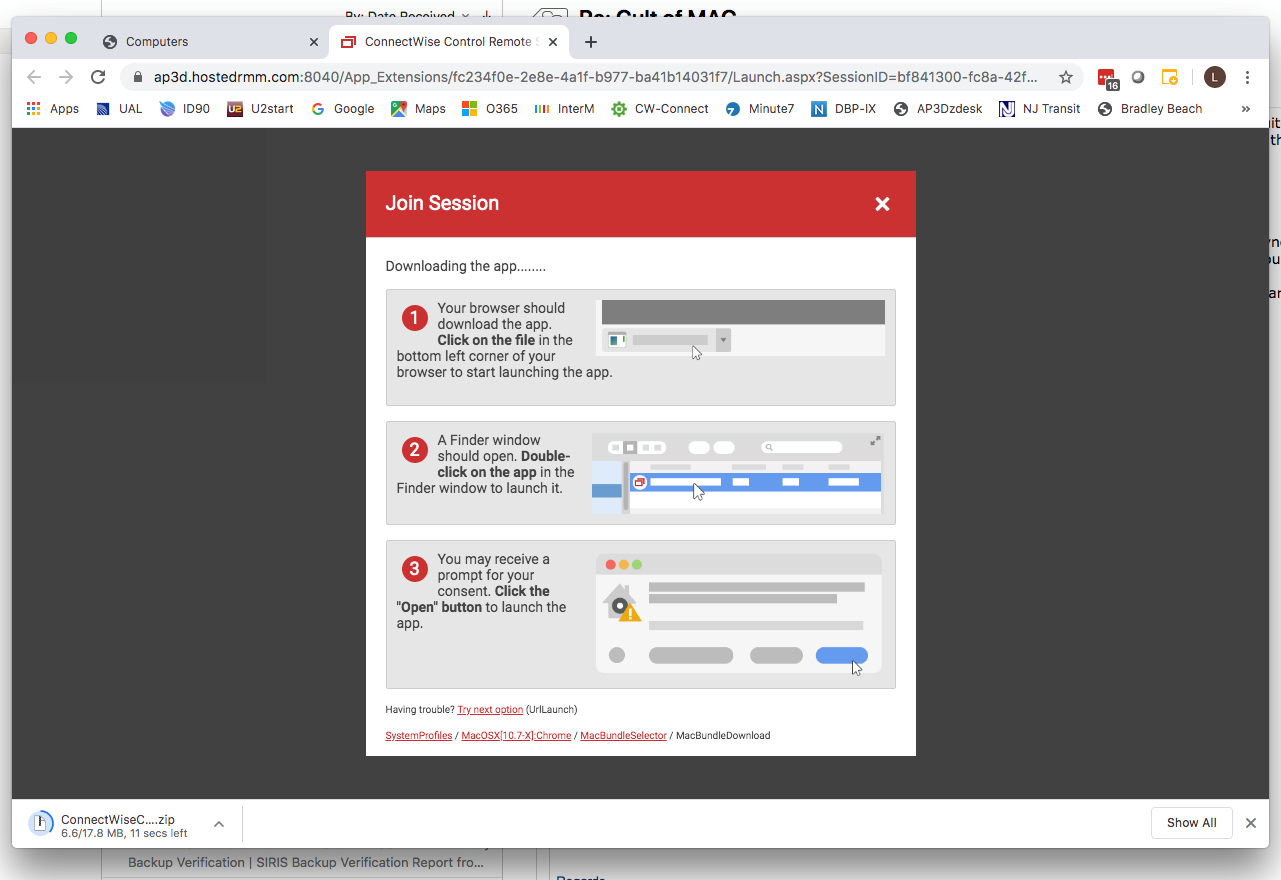
The ConnectWISE bundle will start downloading…..HOWEVER…
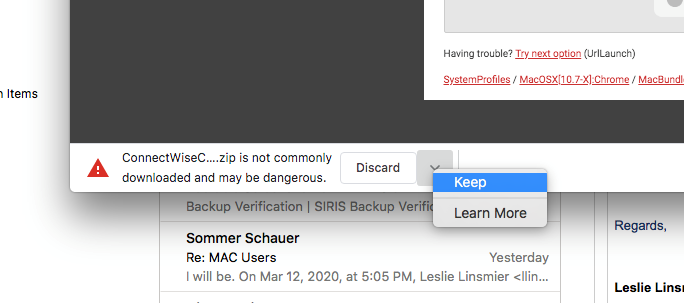
Your MAC might think this file is DANGEROUS, come on Apple I told you to download it, use the chevron (down arrow) and select KEEP:
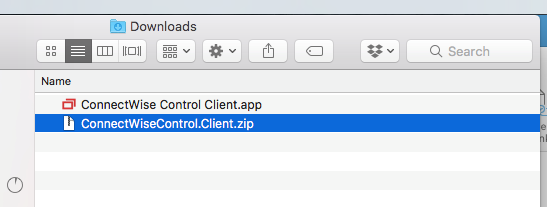
You should have the ConeectWISEControl.zip “bundle” and the extracted ConnectWISE Control Client.app (it should have extracted, if not you will need to get a program to unzip the file.
If the App does not automatically open then double click the App in your DOWNLOADS folder
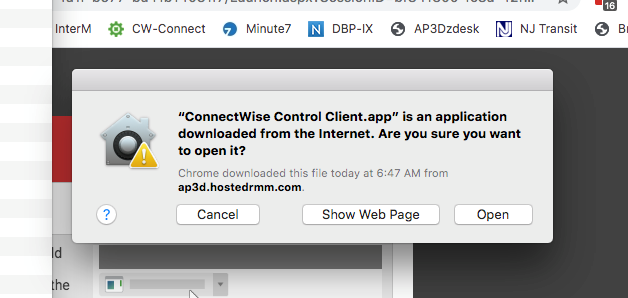
Select OPEN
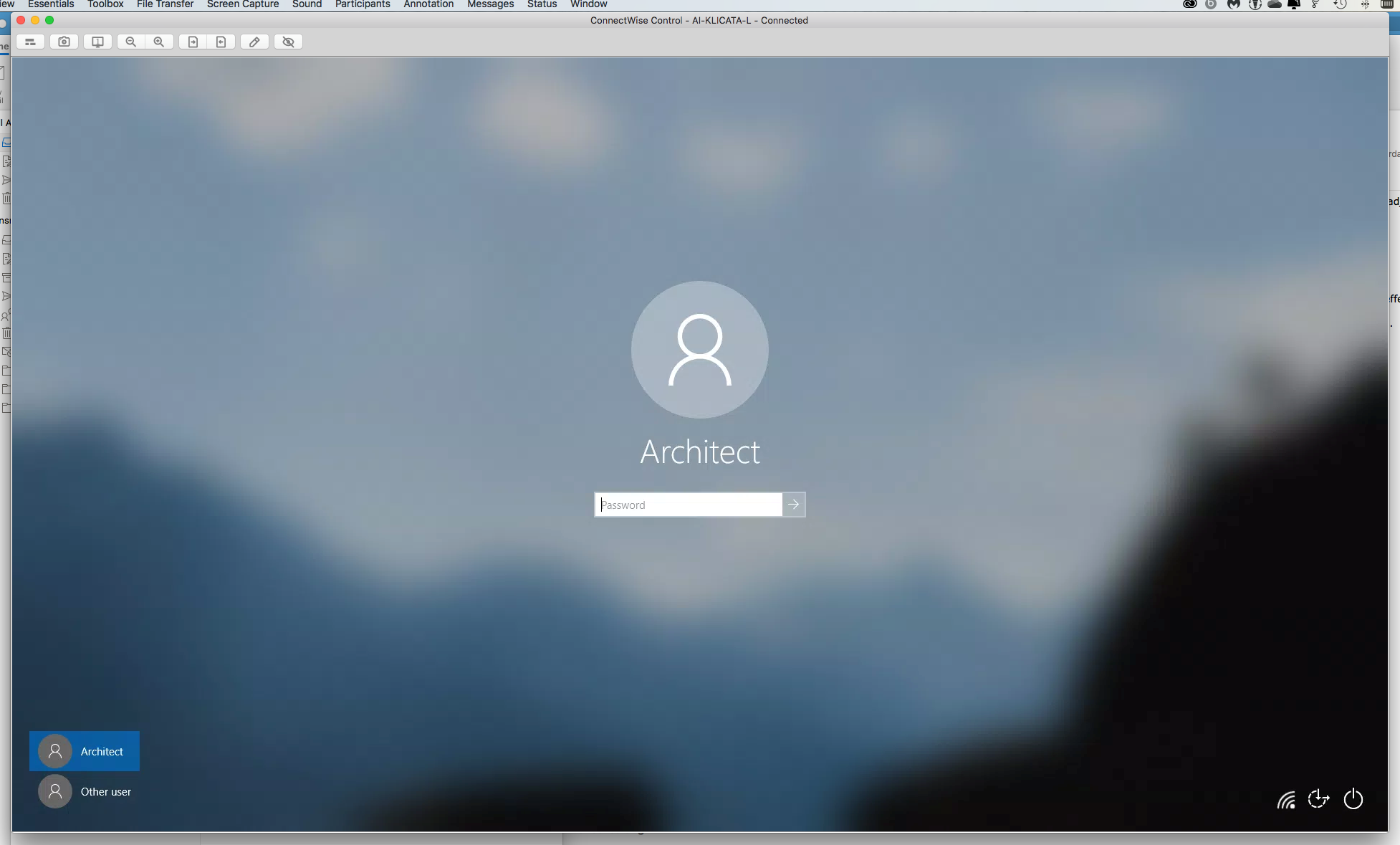
You should in a few seconds have the ConnectWISE window open with your computer login screen shown.
You should be able to logon from here and work.
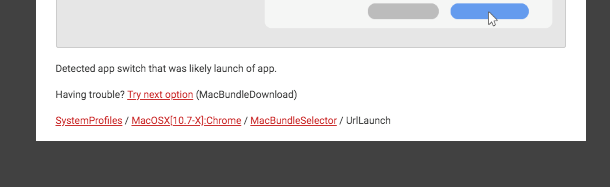
NOTE: During reconnections back to the site to access your computer, sometimes the App will longer work, from here you must redownload the (MacBundleDownload)
Happy Connecting.
Comments
0 comments
Please sign in to leave a comment.